
Plans, Groups, Portals, and Storefronts
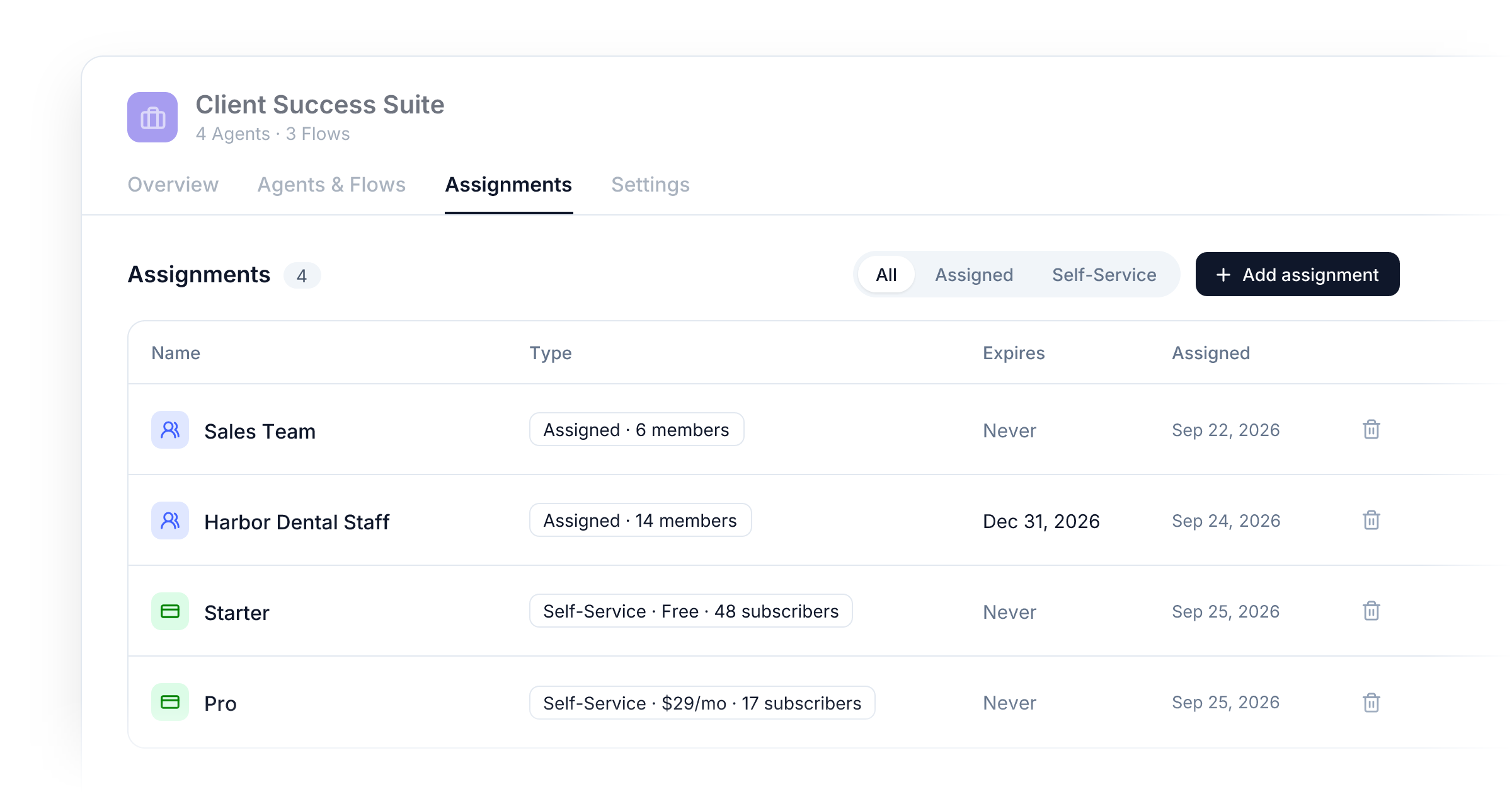
Until now, deciding who could use your Agents, Flows, and Suites meant switching things on per person and per Portal, in several places at once. It worked for a handful of users. It got hard to follow as you grew, because nobody could look at one screen and say who could open what.
This release replaces all of that with four building blocks that each do one job: Groups decide who, Plans decide what people pay for, Portals decide where they sign in, and Storefronts decide where they buy.
Groups: one place to decide who gets what
Every Agent, Flow, App, and Suite now has an Assignments tab. Assign it to a Group and everyone in that Group can use it. That tab is the only place access is granted, so the answer to "who can use this?" is always one click away.
There are two kinds of Group:
- Assigned Groups are managed by you. Add your sales team, a client's staff, or a cohort of students, and they get everything assigned to that Group. Need to give one person access? Make a Group of one.
- Self-Service Groups come from your Plans. When someone subscribes to a Plan they join its Group automatically, and they leave it when the subscription ends.
Remove an assignment and the access is gone on that person's next request. Nobody keeps a tool they shouldn't have until their session happens to expire.
Plans: sell access and credits together
A Plan is something people can join or buy on their own. Each Plan bundles what it unlocks with the credits it includes, and every subscriber gets their own credit pool. Someone on two Plans draws from both.
Free Plans work too. A $0 Plan is a good way to offer a starter library that anyone can sign up for, then sell the rest on a paid tier. The Plan contents view shows every Plan side by side against everything you've built, so you can spot a gap between tiers before your customers do.
Plans, credit packs, and your payout account now live together under Sell > Plans & Credits.
Portals: a front door for every audience
A Portal is where people sign in and use what you've shared with them. It carries your branding and decides who is allowed through the door.
On a Portal's Access page you choose which Groups may enter. Turn on Self-Service to attach a Storefront, and the Portal opens to anyone who wants to sign up for one of its Plans. Leave it off and only the Groups you admitted can get in. Everyone else sees "Invalid login" and is never sent a code.
Signing in never grants anything on its own. What a person sees inside the Portal is decided by their Groups and their Plans, so one Portal can serve free users, paying customers, and your internal team at the same time.
On Agency, Advanced Security Settings add allowed email domains, a Portal password, trusted IP ranges, and share links that let a specific person in without adding them to a Group.
Storefronts: sell your Plans anywhere
A Storefront is a pricing page for your Plans. Pick which Plans it offers and which one is the default, choose the Portal buyers land in, and decide where they go after checkout: straight into the Portal, or a thank-you page on your own site.
Every Storefront gets a public page you can link to, an embed snippet for your website, and a direct checkout link for each Plan. Buyers pay through your Stripe account, get an account created from their checkout email, and receive a welcome email with a sign-in link. Existing customers see a Sign in link, and your Portal's sign-in page shows a Sign up button that leads back to the Storefront.
Upgrade your HighLevel sub-accounts
If you share Suites with HighLevel sub-accounts, you can now move them onto the same model in one step. The upgrade gives you three things you couldn't do before:
- Credit limits. Set how many credits each sub-account can use, so one busy location can't drain your whole balance.
- Credit packs. Sub-accounts that hit their limit can buy more credits from you instead of waiting for you to raise it.
- User management. Sub-accounts appear in Users and Groups like everyone else, so you manage all your users in one place.
Start it from Deploy > HighLevel. You choose the credit limit that applies to every sub-account, with a cost estimate beside each option. If you'd rather keep things as they are, pick Unlimited (same as today). Before you confirm, we show which sub-accounts would have hit each limit over the last 30 days, so nobody is cut off by surprise.
Nothing about the experience inside HighLevel changes. Each sub-account keeps its Suites, its Knowledgebase, and its chat history, now served through a Portal. From then on, the sub-accounts table is where you choose which Suites each location can use and turn Knowledgebases on or off. Changed your mind? Undo puts everything back the way it was.
The upgrade is opt-in. You can dismiss the prompt with Do this later and come back to it from the banner at the top of the HighLevel page.
A simpler sidebar
The sidebar is organized around the new model:
- Deploy: Portals, Embed & Share, and HighLevel.
- Sell: Storefronts, and Plans & Credits.
- Assign: Users and Groups.
- Monitor: Activity and Carbon Removal.
From Users you can now add someone by email, put them straight into Groups, and send them a branded invite in one step.
Fixes
- Personalization: Agents now see the question each personalization answer belongs to, so an answer like "Dentist" is understood as the user's profession without being told to check the form. This also fixes Suites used inside HighLevel sub-accounts.
- Chat: Finished steps like "Reading knowledgebase page" no longer stay on screen while the reply is streaming. The full list of steps is still one click away.
- Chat: You can scroll up and start reading a long reply while it is still being written. The chat no longer pulls you back to the bottom, and a button takes you to the latest message when you're ready.
- Portals: Chats inside a Portal now use the Portal's own theme. Before, they used your workspace theme even when the Portal had its own colors.
- Docs: The Personalization guide now matches the app. It described a "Field scope" setting that doesn't exist; every question applies to the whole Suite.
- Agents: Fixed an issue where an Agent ran at the model's default no matter where the Temperature slider was set, so replies from Agents you tuned may now be more or less varied than before.
- Agents: An Agent that creates an image and then keeps working no longer fails on its next step.
- Knowledgebases: Agents embedded on your site or shared in a Portal now read their Knowledgebase. Before, they could answer without it. Visitors and end users can read it but never change it; only members of your workspace can edit it.
- Flow Editor: Pasting text no longer adds it to your message twice. Pasted text also stays part of the conversation, so the Agent still has it on later turns and after you reopen the chat.
- Flows: Webhook steps check every redirect, so a public address can no longer forward a request to a private one.
- Quality: Test cases whose answers no longer match the form, for example after you rebuild it, are marked "Answers out of date" and left out of the run instead of failing every rule.
- Quality: The suggested improvements dialog no longer pushes the Apply button off screen when it shows the reasoning and test results.
Improvements
- Brand: Build your own themes in a full-screen editor with a live preview of your site. Start from your brand color, your logo, or a curated palette, fine-tune all five colors and your corner rounding, and dark mode is made for you. Save as many themes as you like and switch between them. Your saved themes also appear in each Portal's and Flow's theme picker.
- Brand: A new Brand page in the sidebar puts your logo, theme, whitelabeling, and custom domains in one place, with a live preview of your chat, sign-in screen, emails, and pricing page as you change them.
- Images: Choose which model your Agents use to create images and which one they use to edit them, including GPT Image 2.5 and Nano Banana 2. Each image is now billed by what it costs to make instead of a flat 15 credits, so a typical image on the default model costs less than before.
- Images: Double-click an image to zoom in, then drag to look around. You can also pinch to zoom or use the zoom controls under the image.
- Flow editor: The toolbar at the bottom of the canvas has a Pointer tool and a Hand tool. Pointer is the default: click a step to select it, or drag across the canvas to select several. Hand lets you click and drag to move around the canvas.
- Chat: You can type your next message while a reply is streaming, then send it as soon as the reply finishes.
- Chat: Conversations sit in a centered column that's easier to read on wide screens, with a floating message box that lines up with it, and your messages are only as wide as what you typed.
- Chat: Each message you send slides to the top of the chat, and the reply appears right beneath it, so you can read it from the start instead of chasing the bottom of a long conversation. Retrying a reply brings its message back to the top too.
- Chat: On wide screens, the bar above a chat becomes transparent, so the conversation can use the full height of the window. In Portals, this includes the bar with the page trail and search.
- Agents: Add conversation starters right from an Agent's About step. Write up to eight suggested first messages for people to pick from when they open a new chat.
- Flow editor: A new Evaluator step asks yes or no, score, or multiple choice questions about what it receives and passes the answers to the next steps. It never branches, so "score this resume, then always continue" needs no routing.
- Flow editor: Attach Knowledgebases to a single step. A step can search its own Knowledgebases in addition to the ones the whole Flow uses.
- Flow editor: After a test run, hover over a step to see what it received, exactly what it sent to the model, what it produced, and the credits it used. This includes steps whose output never appears in the chat.
- Flow editor: Ask the assistant about a specific step from the step itself. The step is attached to your next message so the assistant knows which one you mean.
- Flow editor: Classify steps pick the right branch more reliably, and the run log shows how confident each choice was.
- Quality: Improve automatically tunes your Flow's prompts against your test cases in the background. Pick Quick, Standard, or Thorough to see the number of runs and an estimated cost in credits, watch the best score as it goes, and review every change before you apply it to your draft. Cancel at any time and keep the best result so far.
- Quality: Suggested fixes now make small, targeted edits to a prompt instead of rewriting the whole thing, and each edit names the rule it fixes. Every suggestion is tested on your test cases before it's offered, and once you apply your fixes they're confirmed on a fresh run.
- Quality: A suggested fix can also change a step's temperature or turn web search and page reading on or off, with the reason shown next to the change.
- Quality: Checks are graded more strictly and more consistently, and a rule where most checks pass now earns partial credit, so progress shows up in the score.
- Quality: Test runs are safe to repeat. Webhooks are recorded instead of sent, waits are skipped, and tools that need approval are skipped, so checking quality never touches your real systems.
- Knowledgebases: Every page and folder has a one-line description, shown under its title. Agents use these descriptions to find the right page faster.
- Knowledgebases: Folders now work like folders. Opening one shows what's inside it, and Agents browse a large Knowledgebase one folder at a time instead of reading a list of every page.