Give your team its own AI toolkit, with a budget you control
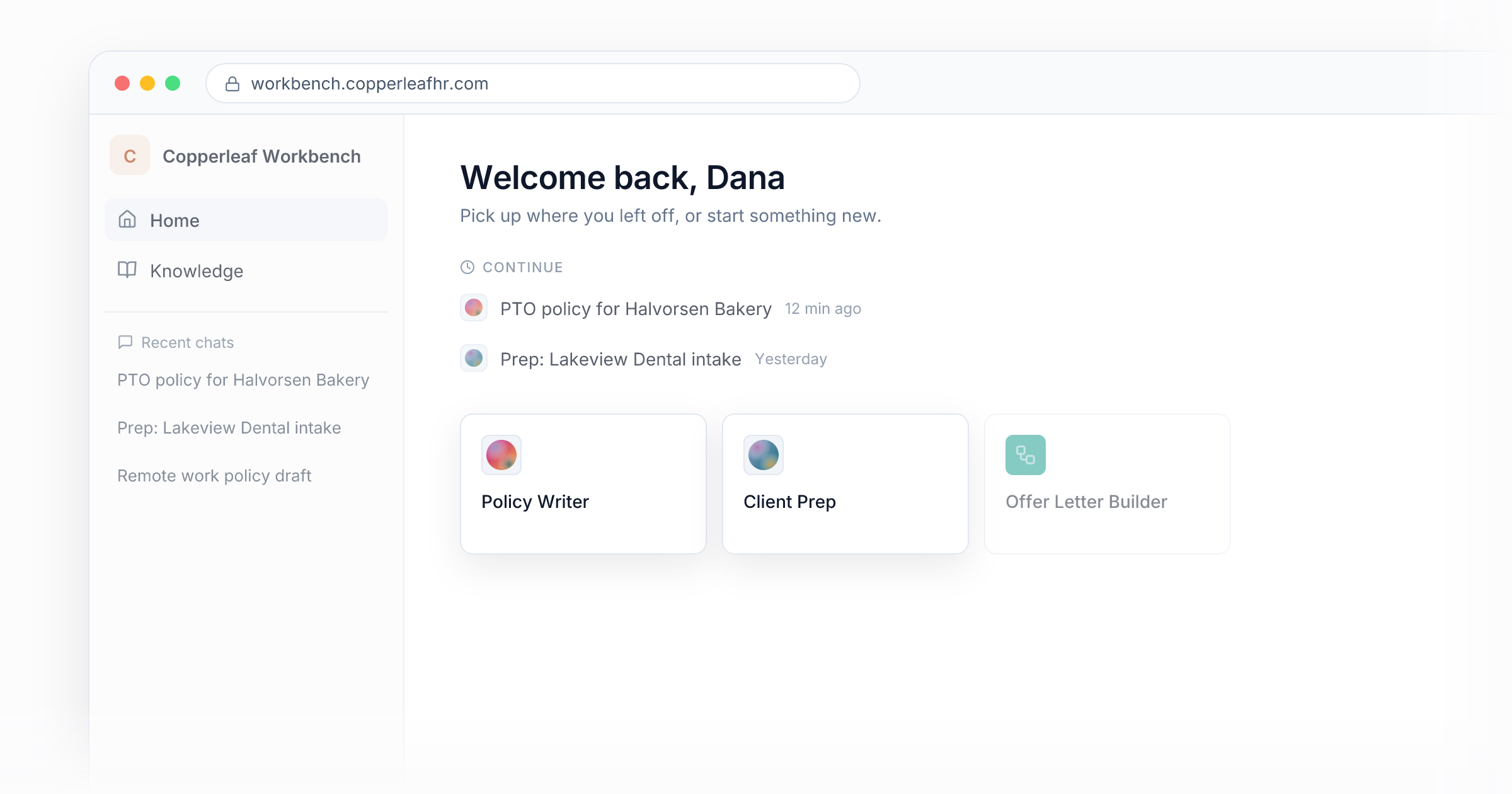
Once Policy Writer was selling, Copperleaf HR's eight consultants asked for it too. They also wanted a second agent, "Client Prep", that reads a client's intake form and summarizes what to cover on the first call.
The first idea was the usual one: buy everyone a chatbot subscription and paste documents into it. But that would mean client files spread across personal accounts, no control over who could see what, and a bill that grew with every new hire.
Instead, Copperleaf gave its team a private portal. Consultants sign in with their work email and see the two agents they need. Each person has a monthly credit allowance, and anyone who leaves loses access with one click. Policy Writer is the same agent customers pay for, with one more assignment.
This guide walks through the same setup.
Builders and users are different people
FormWise separates two groups of people:
- Team members (under Settings › Members) build and edit your agents. Give this role to the people who build.
- Users (under Assign › Users) use what you publish, through a portal. Your consultants, sales team or support staff go here, even though they work for you.
Most of your team only needs to use the agents, so this guide treats them as users.
1. Create a group for your team
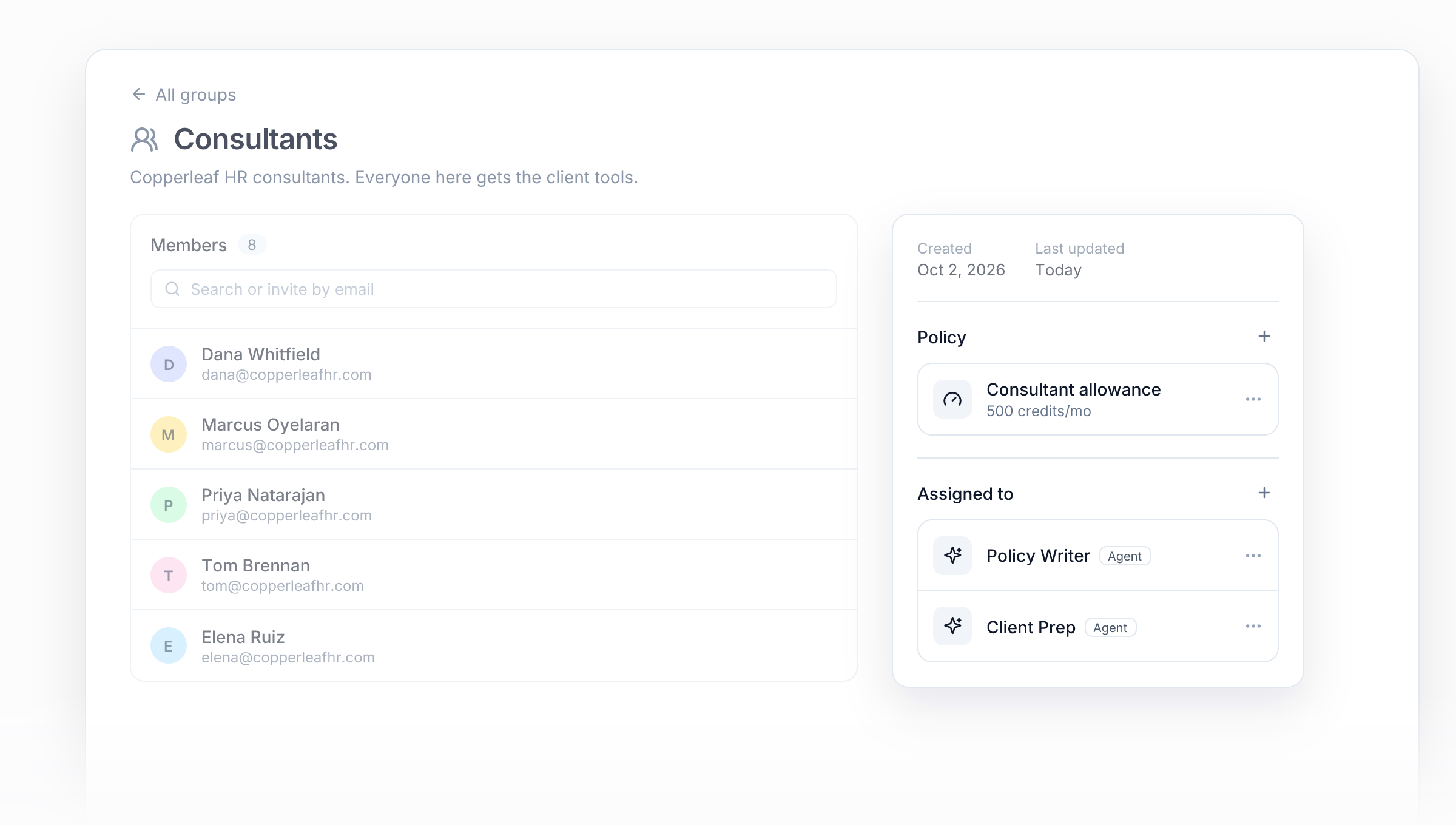
- Under Assign › Groups & Policies, click New group. Copperleaf named theirs "Consultants".
- Add people by email. Add user on the Users page creates someone before they ever sign in, puts them in the group, and can send them an invite email that links to your portal.
Access always goes through groups, even for one person. That way every access decision appears in one list, and removing it later is one click.
2. Give the group a credit allowance
Credits for an assigned group come from your workspace. A policy sets a monthly allowance for each member so one heavy user can't use up everyone's credits.
- Under Assign › Groups & Policies, create a policy. Copperleaf's "Consultant allowance" gives each person a fixed number of credits each month.
- Open the Consultants group and choose that policy in its Policy section.
Every member now has their own monthly allowance. Raise it whenever you like, and the change applies right away.
3. Assign the agents to the group
Open Policy Writer, go to Assignments, click Add assignment and pick Consultants. Do the same for Client Prep.
The Policy Writer Assignments tab now shows the paid plans from the last guide and the new group in one list. One agent serves both audiences, and when you improve it, everyone gets the update.
4. Create a private portal
- Under Ship › Portals, click New portal. Copperleaf's is "Copperleaf Workbench".
- On Branding, add your logo and colors.
- On Access, add Consultants under Admitted groups.
- Leave Self-Service off. Without a storefront, the portal is a private door that only admitted groups can sign in to.
Someone who isn't in the group gets Invalid login when they enter their email, before any code is sent. The portal doesn't reveal anything about itself to outsiders.
5. Send your team the link
Copy the link from the portal's Share button and post it in your team chat or intranet. Each person enters their work email and types the 6-digit code. There's no password to set and no extra software licenses to manage.
To put the portal inside a tool your team already uses, use the embed snippet from the same Share button.
Day to day
- Someone joins. Add them to the group, and they get every tool the team has at once.
- Someone changes roles. Move them to a different group, and their tools change on their next click.
- Someone leaves. Remove them from the group, or revoke their account under Assign › Users. Revoking blocks sign-in immediately.
- Where's the usage going? Each user's record shows their credit usage and activity. Activity has the full run history.
Why this works
A plain chatbot gives everyone the same access with no limits. Here each team gets the agents for its job, a budget per person, and an off switch, all managed from the workspace where the agents are built.
Next: bring in outside help
Copperleaf hires contractors every open-enrollment season. They need some of these tools, but not client files, and only until the season ends. See Give contractors the right tools, only for as long as they need them.