Let customers use your agents inside Claude and ChatGPT, as a paid upgrade
Copperleaf HR's Pro subscribers loved Policy Writer, but they kept asking the same thing: "Can I use this inside Claude?" Their office managers already spent the day in Claude and ChatGPT. Opening another tab to draft a policy was one step too many.
So Copperleaf added a higher plan called Business. Business subscribers connect Claude, ChatGPT or Cursor to Copperleaf's agents and ask for a remote work policy without leaving the chat they're already in. The connection runs on studio.copperleafhr.com, the sign-in screen carries Copperleaf's logo, and every run uses the subscriber's Business credits. To the customer, this is Copperleaf's own product.
Copperleaf wrote no server code and runs no infrastructure. The MCP server is part of the portal Copperleaf already had.
This guide builds on Sell your expertise as an AI subscription.
How it works
MCP (Model Context Protocol) is the standard that apps like Claude, ChatGPT, Cursor and VS Code use to connect to outside tools. Every FormWise portal can act as an MCP server. When a subscriber connects an app to it:
- The app can list and run the agents and flows their plan includes, and nothing else.
- Each run draws from the plan's credits, the same as using the portal in a browser.
- They sign in with their email and a one-time code on your branded screen, then approve the app.
You decide which plans include this. Making it a higher plan only gives your customers a clear reason to upgrade.
What you need
- A FormWise Pro or Agency plan. MCP connections for your subscribers aren't included on Creator.
- A portal with a storefront that's already selling. See the selling guide.
- A subdomain you control, like
studio.yourbrand.com.
1. Put the portal on your own domain
On the Brand page, under Whitelabel and domains:
- Turn on Whitelabeling. This hides the "Powered by FormWise" badge on everything your customers see.
- Under Custom domains, add your subdomain and create the one DNS record it shows you. SSL is set up automatically.
Your custom domain serves every portal in your workspace, so the portal, the storefront, the sign-in screen and the MCP address all move onto it together.
2. Create the higher plan
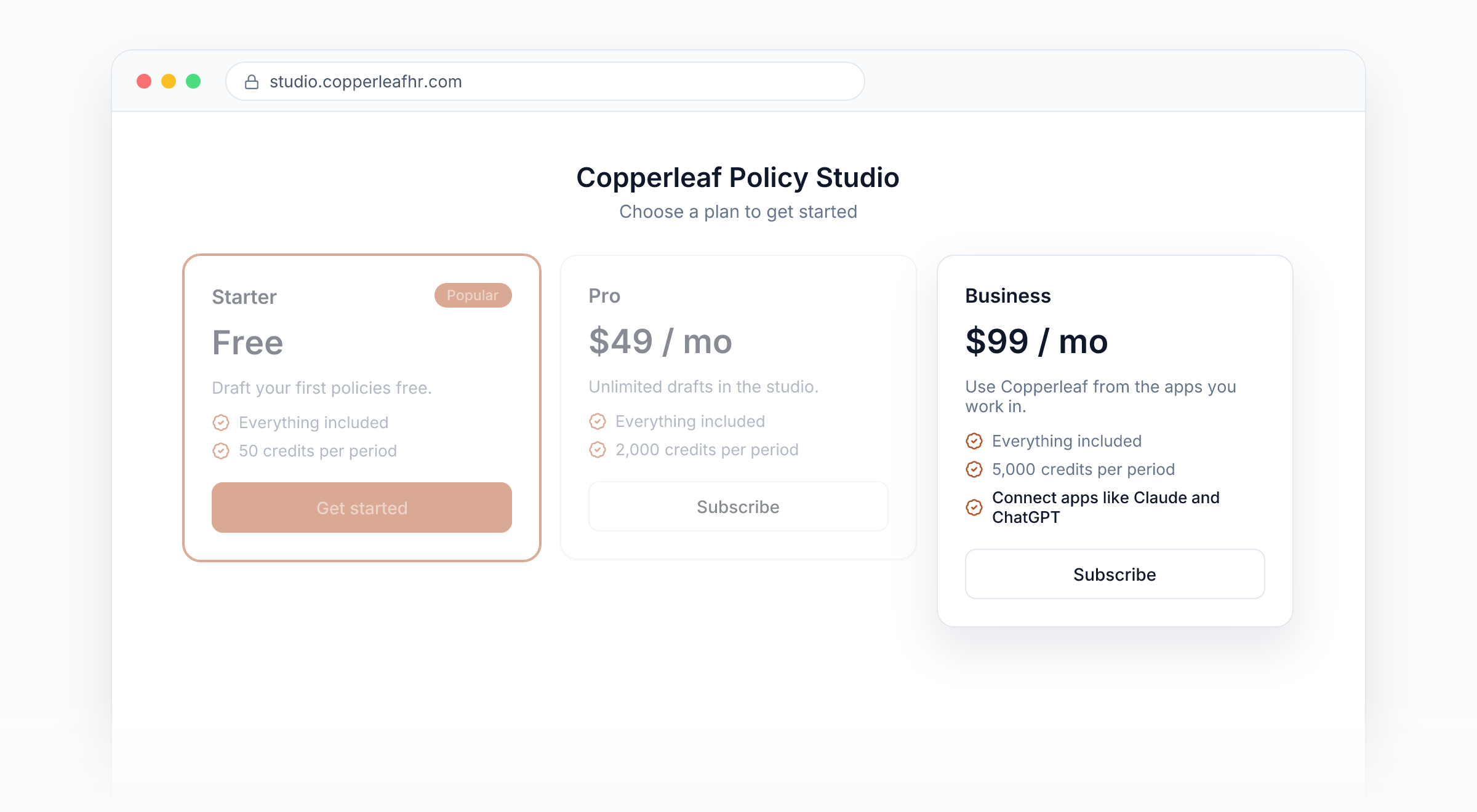
Under Assign › Storefronts & Plans, create a new plan. Copperleaf's plan is:
| Plan | Price | Credits each month | MCP access |
|---|---|---|---|
| Starter | $0 | 50 | No |
| Pro | $49 / month | 2,000 | No |
| Business | $99 / month | 5,000 | Yes |
In the plan's Options section, turn on Include MCP access. Only this plan gets connections. A subscriber who also holds Pro can't connect through Pro.
Give Business more credits than Pro. Customers who connect apps tend to use the agents more often.
3. Choose what Business includes
Open each agent and flow Business subscribers should reach, go to Assignments, and add Business. Copperleaf assigned Policy Writer, its benefits FAQ agent and its Offer Letter flow.
Over MCP, a subscriber reaches exactly what their MCP plan is assigned. Unpublished drafts and anything assigned only to other plans stay hidden.
4. Sell it next to your other plans
Add Business to your storefront. On the pricing screen, Business now shows Connect apps like Claude and ChatGPT under its credit allowance, so the upgrade is clear before anyone pays.
5. Turn on MCP for the portal
Open your portal, go to Access, and find the MCP server card. Turn on Allow MCP connections.
The card shows the portal's Server address, which is your custom domain followed by the portal's path and /mcp. You don't need to send it to anyone. Subscribers see it in their own account settings.
How your customers connect
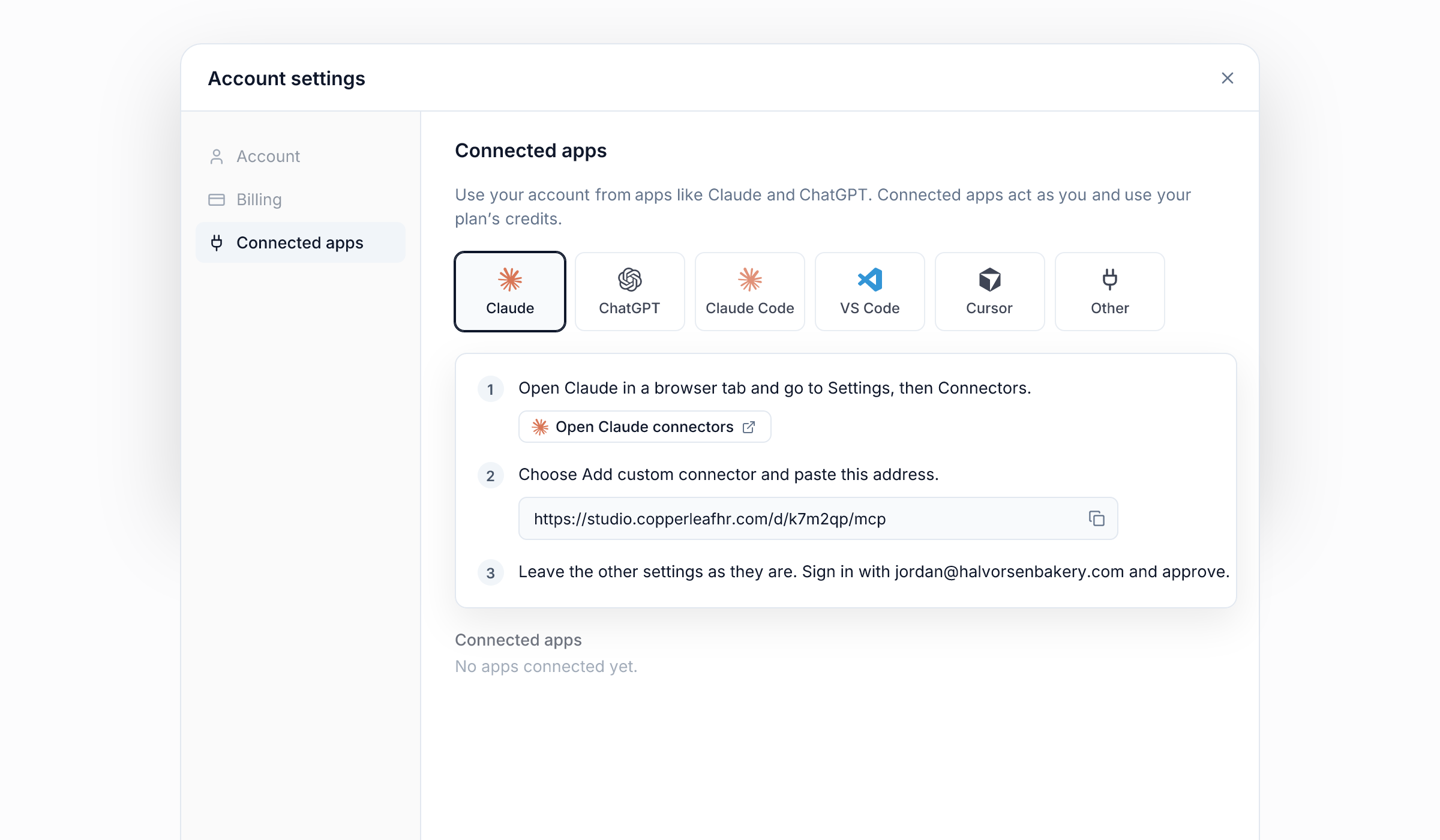
A Business subscriber signs in to your portal, opens the account menu, and chooses Settings › Connected apps. They pick their app, and the steps are written out for them with your address already filled in:
- Claude. Open Settings › Connectors, choose Add custom connector, and paste the address.
- ChatGPT. Turn on Developer mode in Settings, then under Apps and Connectors choose Create, paste the address, and pick OAuth. Developer mode depends on the person's ChatGPT plan.
- Claude Code and VS Code. One command, or a one-click install link.
- Cursor and other key-based apps. Create an API key on the same page and add it in one click.
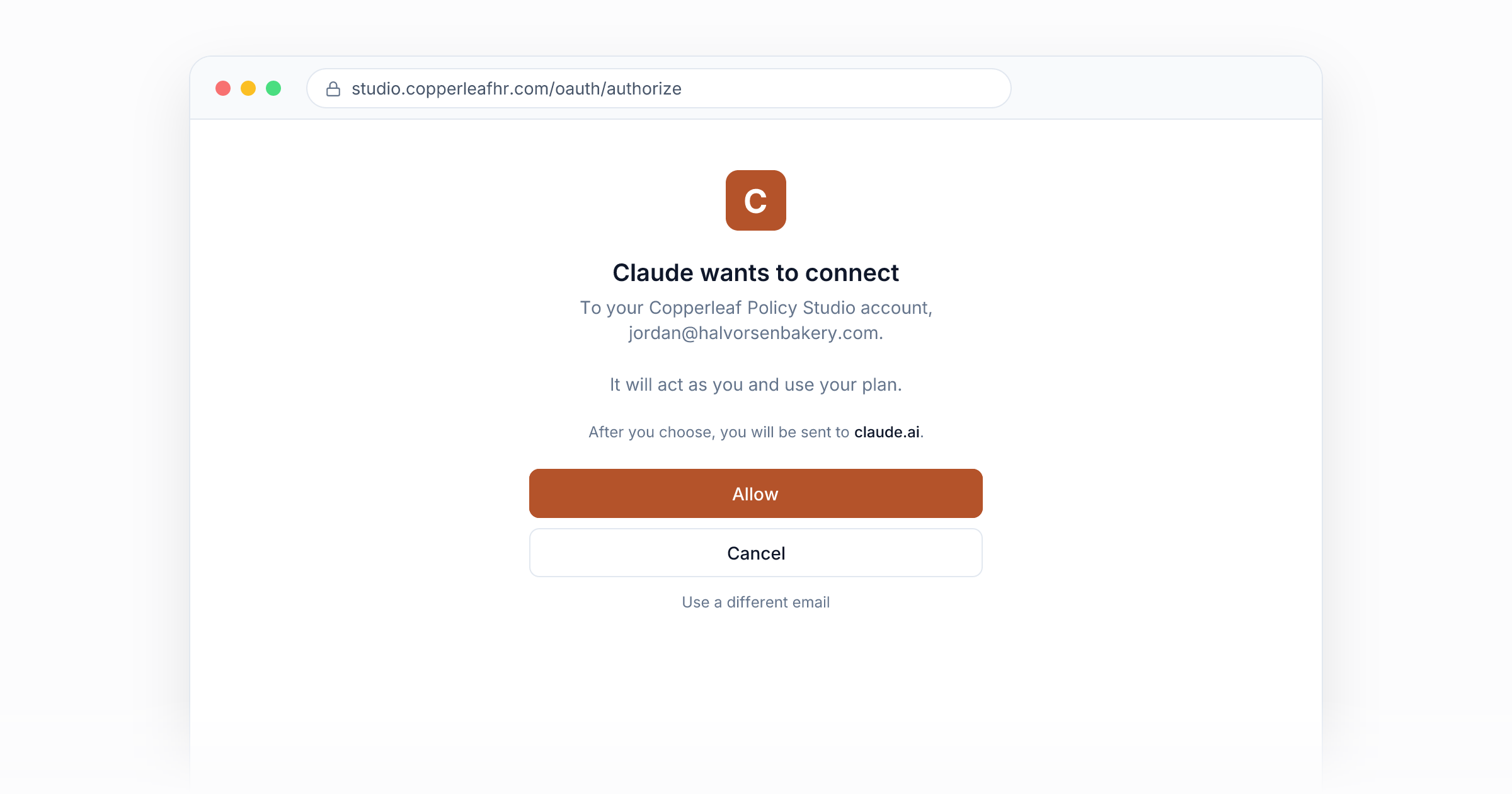
When they add the address, the app opens your sign-in screen. They enter their email, type the 6-digit code, and see "Claude wants to connect" with your logo and name. They click Allow, and Policy Writer appears inside Claude.
From then on they can ask Claude to "draft a PTO policy for a 12-person bakery in Oregon". Claude calls Policy Writer, which answers from Copperleaf's templates and state guides, and the run comes out of their Business credits.
When a Pro customer tries it
A Pro subscriber who opens Connected apps sees: "Connecting apps like Claude and ChatGPT is included with Business." A View plans button opens your plans, so the upgrade happens right where they asked for the feature.
Fully under your brand
- Your domain for the portal, the sign-in, the approval screen and the MCP address.
- Your name on the connection. The server is named after your portal, and no FormWise name appears on the sign-in screen, the approval screen or in the connected app.
- Your logo on the sign-in emails.
- Your Stripe account for the money.
Staying in control
- Subscribers can see every connected app with when it was last used, and disconnect any of them. API keys can be revoked from the same page.
- Cancel or downgrade to a plan without MCP access, and connections stop working on the next request.
- Turn off Allow MCP connections to close the door for everyone at once.
Why this works
Anyone can wrap a prompt in an MCP server. Charging for one is the hard part: you need sign-in, plans, usage limits, billing and a branded approval screen in front of it. Here all of that comes from the portal you already sell through, so your agents can reach customers in the apps they already use.