Sell your expertise as an AI subscription
Copperleaf HR's best work is a first-draft handbook policy: a PTO policy, remote work rules, a code of conduct, written for the client's state and size. A consultant used to spend two billable hours on each one. Most small businesses can't afford that, so Copperleaf was turning them away.
So Copperleaf turned the method into a product. Its templates and state guides went into a knowledgebase. An agent called "Policy Writer" drafts policies the Copperleaf way. Business owners can try it free, then subscribe for unlimited drafts. Copperleaf now earns from customers it used to turn away, and its consultants spend their time on reviews, which is the work clients pay a premium for.
This guide walks through the same setup.
How the pieces fit
FormWise has four building blocks, each with one job:
- The agent is the product.
- Plans are what people buy. Each plan has a price and a monthly credit allowance.
- A storefront is where plans are offered: on your pricing page, in a portal, or both.
- A portal is the door buyers sign in through, with your branding.
A buyer picks a plan on the storefront, pays through Stripe, and signs in to your portal, where the agent is waiting.
What you need
- A published agent. If you don't have one yet, start with Answer every customer question from your website.
- A Stripe account for paid plans. Free plans work without one.
1. Connect Stripe
Go to Settings › Payments and follow the Stripe Connect setup. Payments go to your Stripe account. You own the customer relationship and the revenue, and your Stripe dashboard stays the record for invoices and refunds.
You can skip this step to start with a free plan only.
2. Create your plans
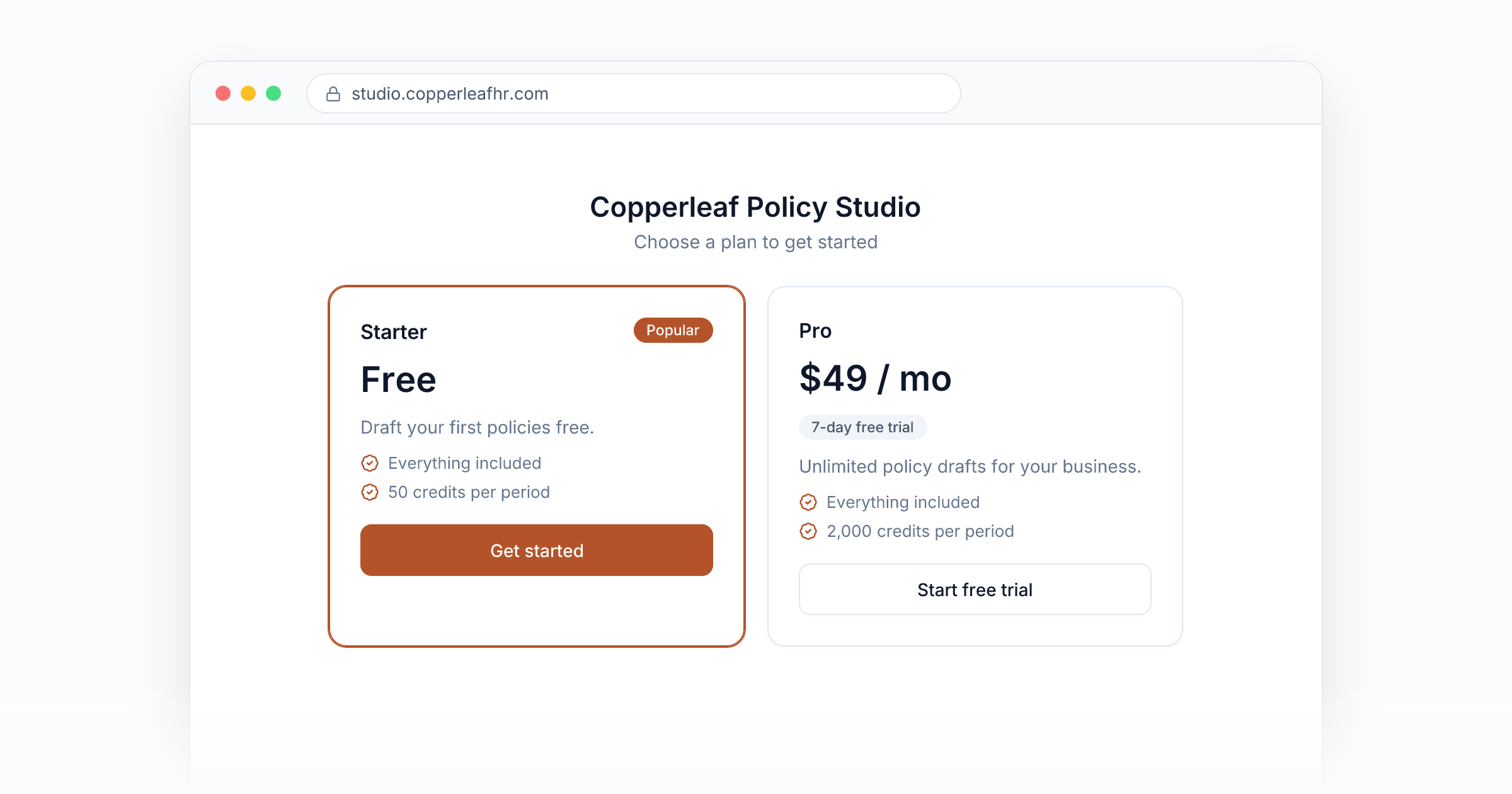
Under Assign › Storefronts & Plans, create the plans you'll sell. Copperleaf made two:
| Plan | Price | Credits each month | Purpose |
|---|---|---|---|
| Starter | $0 | Small allowance | Try a few drafts free |
| Pro | $49 / month | Larger allowance | Regular use |
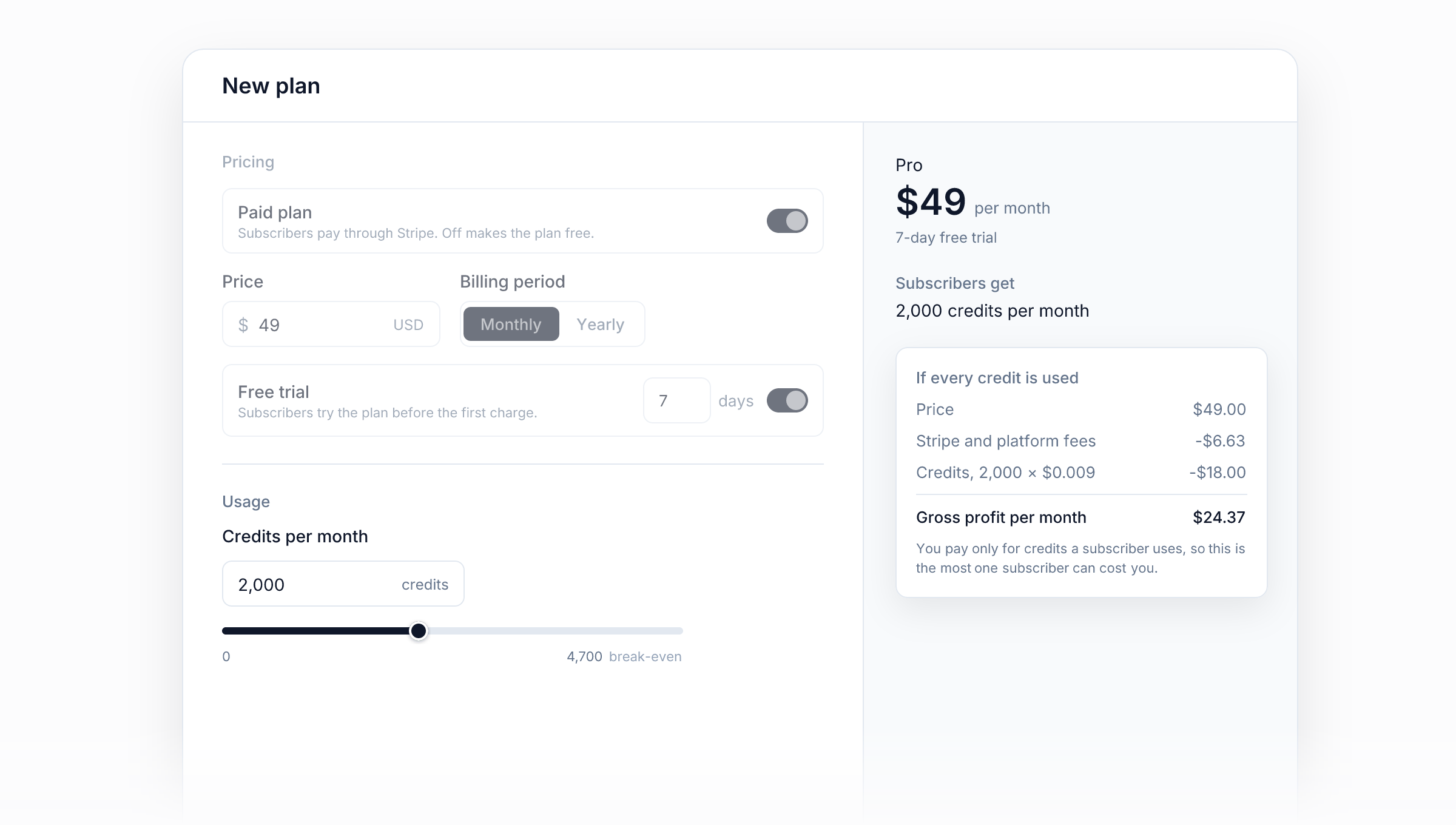
For a paid plan, the credit field shows a break-even receipt: the price, minus fees, minus the cost of the credits if a subscriber uses all of them. If a plan could lose money, the receipt turns red, so you can set your margin before launch. You can also add a free trial, or let subscribers bring their own AI provider key.
3. Assign the plans to your agent
Open the agent and go to its Assignments tab. Click Add assignment and pick Starter and Pro. Subscribers to either plan can now use the agent, each drawing from their own plan's credits.
Selling several products? The Plan contents grid shows every asset against every plan, and warns you if a pricier plan is missing something a cheaper one includes.
4. Create the portal buyers sign in to
- Under Ship › Portals, click New portal. Name it for your customers, not your team. Copperleaf's is "Copperleaf Policy Studio".
- On Branding, add your logo and colors. They also appear on the sign-in emails.
5. Create the storefront
- Under Assign › Storefronts & Plans, click New storefront.
- Add Starter and Pro. Make Starter the starting plan, so every new sign-up begins on the free plan as soon as they verify their email.
- Set Associated portal to the portal you just made. The welcome email links buyers there.
- Choose After checkout: send buyers straight into the portal, or to a thank-you page of your own.
6. Open the portal's door
Back on your portal, open the Self-Service page, turn on Enable Self-Service and pick your storefront. The sign-in screen now has a Sign up button, and anyone can create an account and start on Starter.
7. Put it in front of buyers
There are three ways to share it:
- The portal link from the portal's Share button. Good for emails and social posts.
- The storefront embed. Put your plans on your own pricing page. It works without a portal or a signed-in visitor.
- Per-plan checkout links. Send someone straight to Pro checkout from a button or an ad.
What your customer sees
- They visit the portal, enter their email and type the 6-digit code they receive. There's no password to create.
- They start on Starter and draft their first policy.
- When they want more, they pick Pro. Stripe Checkout opens, and access upgrades as soon as payment completes.
- A subscription bar shows their plan and remaining credits. It warns them at about 70% used and offers an upgrade when they run out. They manage billing and cancellation through Stripe's own portal.
Their history and conversations stay with their account when they upgrade.
Make it fully yours
- Custom domain. Serve the portal from something like
studio.copperleafhr.com. - Whitelabel. Remove the FormWise badge so the product is entirely under your brand.
Both are on the Brand page.
Why this works
Most AI builders stop once the chatbot is built. Selling it also takes sign-in, payments, usage limits and a branded place for customers to log in, and here those are all in the same workspace as the agent. You decide what's free, what's paid and what it costs to run, without writing any code.
Next: give it to your own team
Copperleaf's consultants wanted Policy Writer too, without paying for a plan. You don't need to build a second copy of the agent. See Give your team its own AI toolkit.