Customer support agents powered by your company's knowledge
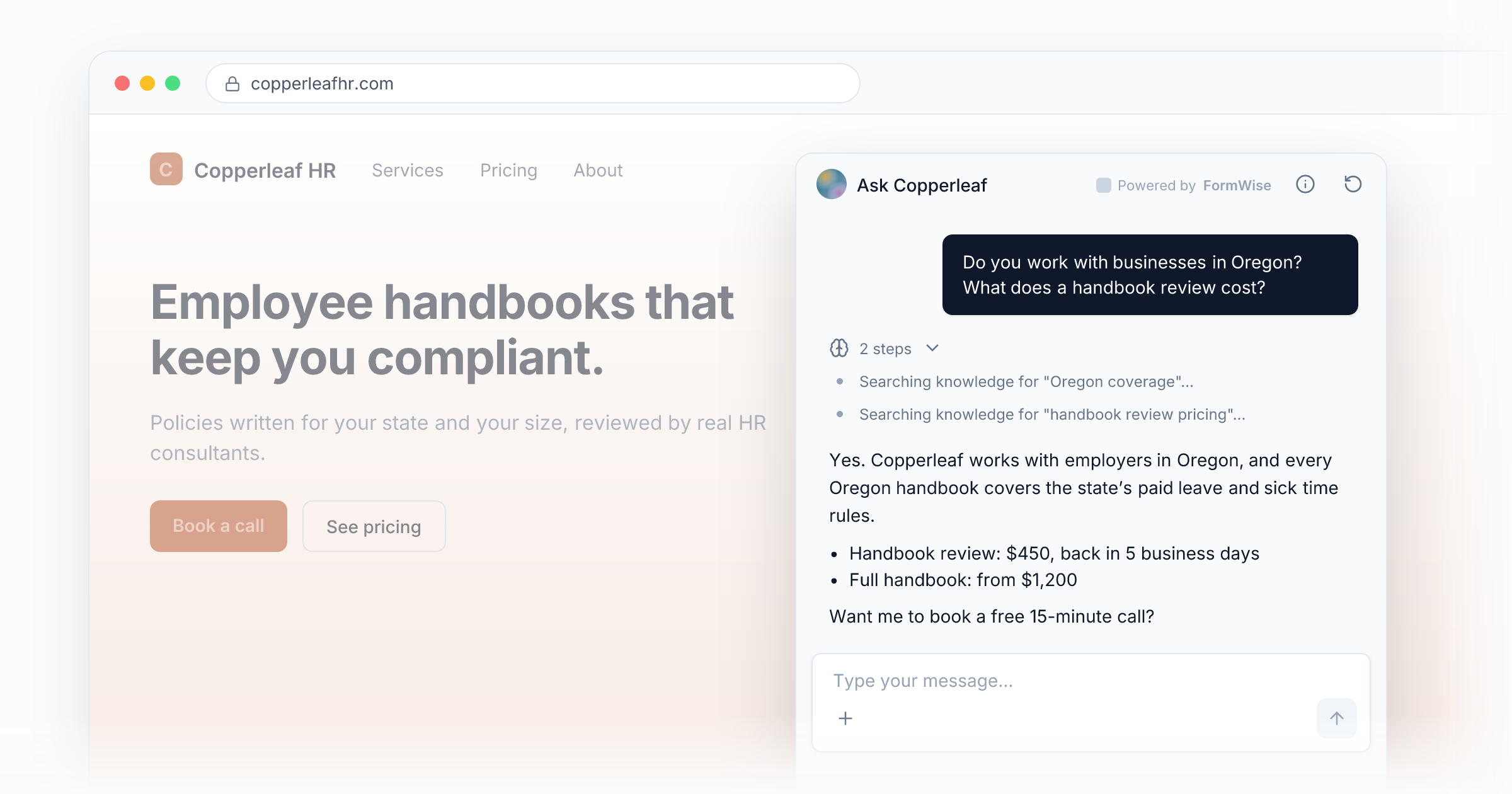
Copperleaf HR helps small businesses write employee handbooks and stay compliant. Every week the team answers the same questions by email: what a handbook review costs, how long it takes, and whether Copperleaf covers a client's state. The answers are already written down in a pricing sheet, a services PDF and an FAQ page. Nobody has time to keep pasting them.
So they put those documents to work. In one afternoon Copperleaf had an assistant on its website that answers those questions in Copperleaf's own words, around the clock, and points serious leads to a booking link.
This guide walks through the same setup.
What you'll have at the end
- A knowledgebase holding the documents your customers ask about.
- An agent that answers from those documents, with its goals, personality and guardrails drafted for you.
- A chat window on your own website.
What you need
- A FormWise workspace.
- One to three documents people ask you about: an FAQ, a price list, a returns or cancellation policy, a services guide. A public web page works too.
Short and specific beats long and general. Your pricing sheet will do more for this agent than your company history.
1. Start the agent and give it your documents
- On Home, click Create an agent.
- Give it a Name. Copperleaf called theirs "Ask Copperleaf".
- In What should it do?, write one sentence. For example: "Answers prospective clients' questions about our services, pricing and coverage."
- Pick Build from knowledge and click Next.
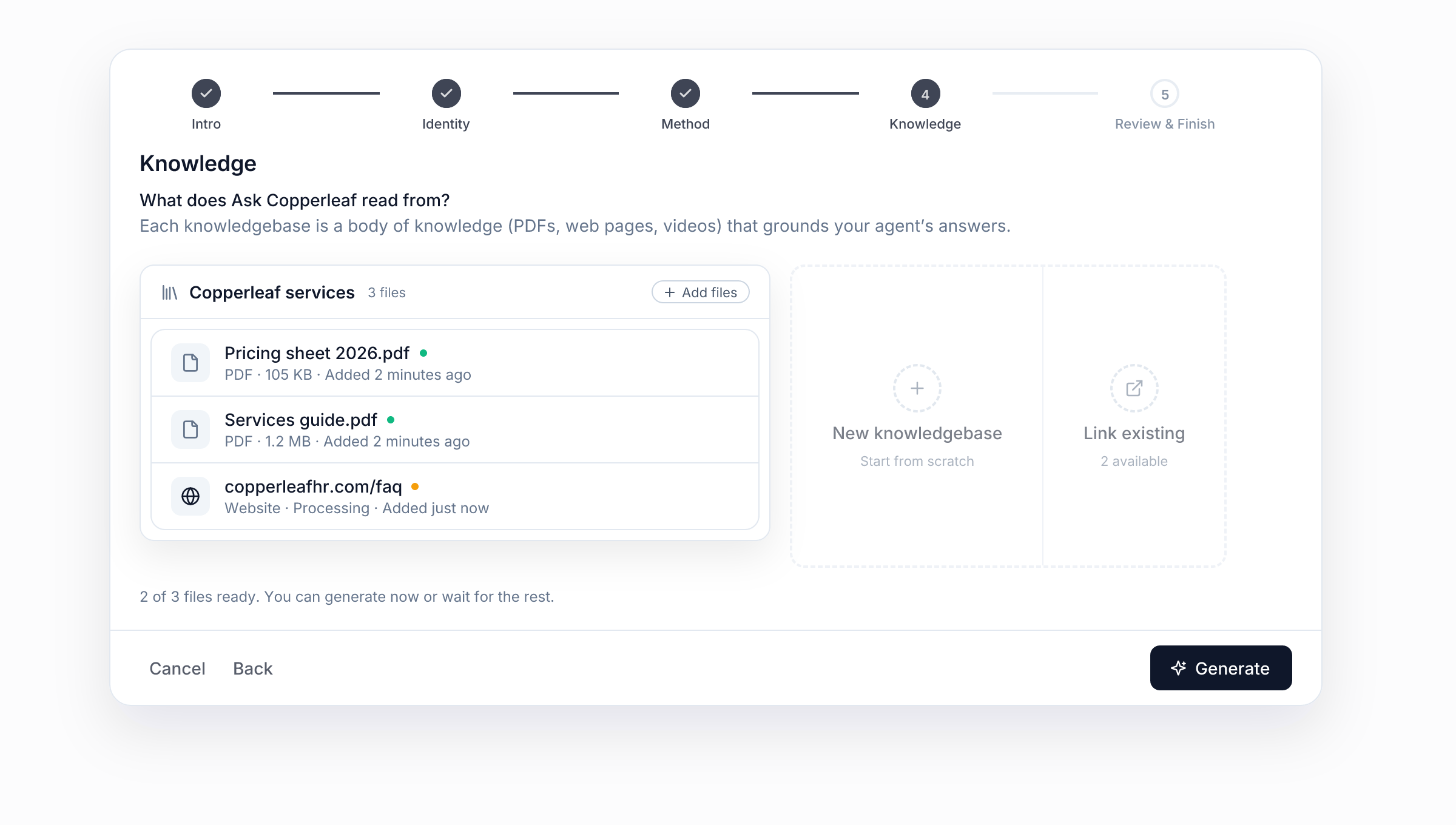
- Click New knowledgebase, then Add files. You can upload PDFs and documents, paste a website URL, add a YouTube link for its transcript, or paste text.
- Wait for each file to show Ready. It usually takes a few seconds to a minute.
2. Let FormWise draft the agent
Click Generate. FormWise reads your documents, picks up your terminology and drafts the whole agent: a summary, goals, what's out of scope, personality, guardrails and a model.
Read the Review & finish screen. Does it sound like you? Copperleaf added one goal: "When someone asks about a specific engagement, offer the booking link." Then click Create Agent.
3. Test it before anyone else sees it
The editor has a Preview chat on the right. Only you can see it.
Ask something only your documents can answer, like "Do you cover businesses in Oregon?" or "What does a handbook review cost?" You'll see a step like Searching knowledge while the agent looks it up. Click the steps line on the reply to see exactly what it searched.
Compare each answer with your document. If it misses something, the answer probably isn't in your files yet. Add the document that has it.
4. Publish it and put it on your website
- Click Publish & Share at the top right of the editor.
- In Publish agent, leave Make this version live checked and click Publish agent.
- In the Share window, open Embed (iframe) and copy the snippet.
- Paste it into your site. Website builders like WordPress, Squarespace, Webflow and Wix all have an HTML or embed block for this.
To make sure the assistant only appears on your own site, add your domain to the agent's Embedding settings. Other sites won't be able to embed it.
Open your site in a private browser window. That's exactly what visitors see.
Keeping it current
Your agent reads the knowledgebase every time it answers, so you don't need to republish when your documents change. Upload a new price list and the next visitor gets the new prices. To keep it updated automatically, sync a Google Drive or Notion folder, or have FormWise crawl a section of your website.
Changes to the agent itself, like its goals or guardrails, stay in your draft until you click Publish again.
Why this works better than a generic chatbot
- It answers from your documents, not from guesses. You can see what it searched for every answer.
- Your knowledge is reusable. The same knowledgebase can power more agents later, like one that drafts proposals or one your team uses internally.
- It's live in minutes and changes when your documents do.
Next: charge for it
Copperleaf's free assistant answers questions about Copperleaf. Their next step was an agent that does the work itself, writing a first-draft handbook policy, and selling access to it. That's the next guide: Sell your expertise as an AI subscription.